Email Account Tabs: Settings, Analytics Report & Campaigns

Email Account Tabs: Settings, Analytics Report & Campaigns

Overview

When you open any sender account inside the Email Accounts section, you will see three tabs at the top: Warmup Settings, Analytics Report, and Campaigns. Each tab serves a distinct purpose  from configuring how the account sends emails, to tracking warmup health, to viewing which campaigns the account is actively powering.

This article walks through every section and field in each tab so you always know exactly what you are looking at and why it matters.

How to get here: Go to Email Accounts in the left sidebar → click on any sender email address.

TAB 1 : Settings Tab

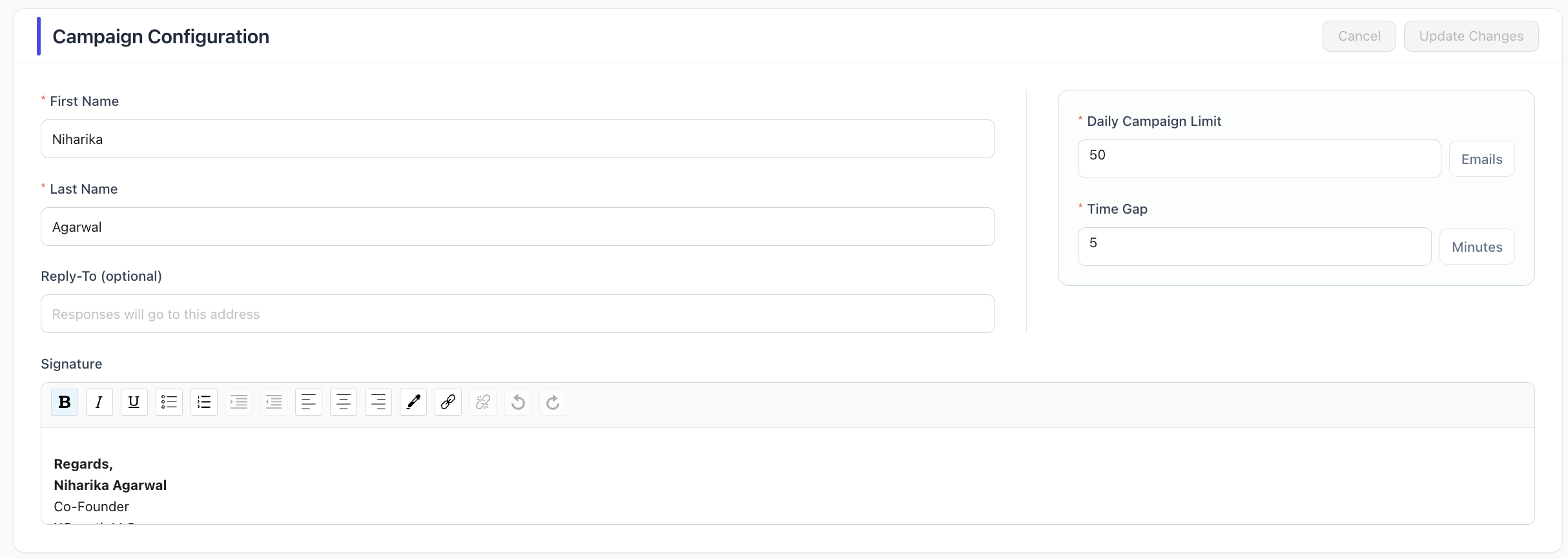
The Settings tab is divided into two sections: Campaign Configuration and Warmup Configuration. Together these control how this sender account behaves in your campaigns and how its email reputation is built over time.

Segment 1: Campaign Configuration

This section manages the identity and sending behaviour of the sender account whenever it is used in a campaign.


Field

What It Does

Example Value

First Name

The sender's first name as it appears in outgoing emails.

Niharika

Last Name

The sender's last name.

Agarwal

Reply-To (optional)

If set, all replies from recipients will go to this address instead of the sender's inbox. Leave blank to receive replies in the sender's own inbox.

support@company.com

Signature

The email signature appended to every outgoing email from this account. Supports rich text formatting  bold, italics, links, and layout.

Regards,
Niharika Agarwal,
Co-Founder
XGrowth LLC

Daily Campaign Limit

The maximum number of campaign emails this account is allowed to send per day. This cap works alongside your campaign-level volume setting — whichever is lower applies.

50 ( as per your campaign's volume)

Time Gap (Minutes)

The minimum wait time between each email sent by this account. A higher gap reduces sending speed but lowers the risk of being flagged as spam.

in mins


Daily Campaign Limit and Time Gap are the two most important settings for controlling how many emails actually go out. See our Campaign Sending Volume article for a full explanation of how these interact with your campaign settings.

Tip: Set your Daily Campaign Limit to match the per-account share of your campaign volume. If you have one account in a 100-email campaign, set this to at least 100. If you have two accounts, set each to at least 50.

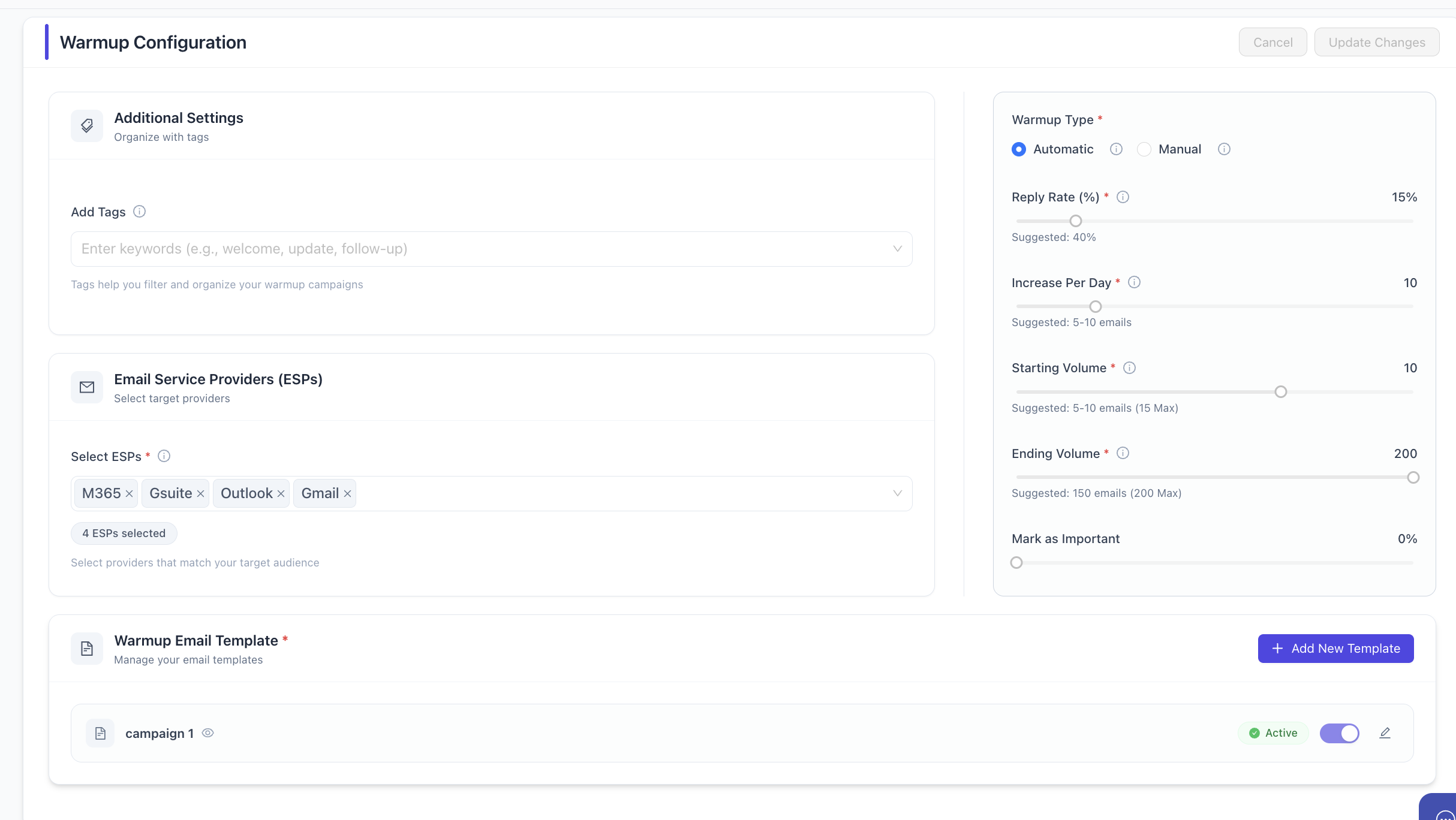
Segment 2 : Warmup Configuration

Warmup is the process of gradually increasing email volume from a new or inactive sender account to build trust with email providers. The settings below control how that process runs.

Additional Settings


Field

What It Does

Example Value

Add Tags

Optional labels to organize and filter this account's warmup campaign. Useful when managing multiple accounts.

welcome, outreach, sales


Email Service Providers (ESPs)

Select which email providers your warmup emails will be sent to. XemailCampaign sends warmup emails between accounts registered on these platforms.


Field

What It Does

Example Value

Select ESPs

Choose the platforms you want warmup emails delivered to. Selecting providers that match your target audience improves warmup quality.

M365, Gsuite, Outlook, Gmail


Warmup Type & Volume Settings


Field

What It Does

Example Value

Warmup Type

Automatic: xEmailCampaign manages the warmup schedule for you. Manual: you control the pace yourself.

Automatic (recommended)

Reply Rate (%)

The percentage of warmup emails that will receive a reply. A higher reply rate signals healthy engagement to email providers. Suggested: 40%.

15% (suggested 40%)

Increase Per Day

How many additional warmup emails to add each day as the account builds reputation. Suggested: 5–10 emails.

10

Starting Volume

The number of warmup emails sent on Day 1. Start low to avoid triggering spam filters. Suggested: 5–10 (max 15).

10

Ending Volume

The maximum daily warmup volume this account will ramp up to over time. Suggested: 150 (max 200).

200

Mark as Important

Tags warmup emails as important in recipients' inboxes, improving engagement signals. Set as a percentage.

0%


Tip: Leave Warmup Type on Automatic unless you have a specific reason to manage it manually. The system will handle ramp-up pacing for you.

Warmup Email Template

Assign an email template to be used for warmup sends. You can create and manage templates using the Add New Template button. Each template should read like a genuine email to avoid spam detection.


TAB 2 : Analytics Report

The Analytics Report tab shows you the warmup performance dashboard for this sender account. It is only active once a warmup campaign has been running — if warmup has not started yet, the tab will display a 'No Warmup Data Available' message.

What You Can See Here

How long the warmup has been running for this account

Daily send and reply volume over your selected date range

Whether the account's engagement rates are healthy or need adjustment

A historical view of warmup performance to spot drops or improvements

Date Range Filters

Use the filters at the top right to choose your reporting window:


Filter

Use When

Today

Checking how many warmup emails went out today

Last 7 Days

Reviewing the past week's warmup trend (default view)

Last 30 Days

Assessing overall warmup health over the past month

Custom

Selecting a specific date range for deeper analysis


If the dashboard shows 'No Warmup Data Available', it means either warmup has not been enabled for this account yet, or there is no activity in the selected date range. Go to the Warmup Settings tab and make sure a warmup campaign is active.

Tip: Check this tab weekly for any account you are actively warming up. A drop in reply rate or send volume often signals a deliverability issue that is easier to fix early.


TAB 3 : Campaigns

The Campaigns tab shows every campaign that this email account is currently connected to or has been associated with in the past. It gives you a quick picture of how active this sender account is and what it is working on.

What You Can See Here

A list of all campaigns linked to this sender account

The name of each campaign

How long the account has been connected to each campaign

The current status of each campaign (active, paused, completed)

When the Tab Shows No Campaigns

If no campaigns are listed, this sender account has not been added to any campaign yet. You can either assign it to an existing campaign from the Campaigns section, or create a new campaign and add this account as a sender.

Tip: Use this tab before deleting or pausing a sender account. It lets you quickly check whether removing the account would affect any live campaigns.


Quick Reference : Three Tabs at a Glance


Tab

What It Controls

When to Use It

Warmup Settings

Sender identity, daily send limit, time gap, signature, warmup schedule and volume

Setting up a new account or adjusting sending limits and warmup pace

Analytics Report

Warmup performance charts — send volume, reply rate, engagement trends over time

Monitoring warmup health and checking if an account is building reputation correctly

Campaigns

List of all campaigns this account is connected to, with status and duration

Auditing account usage before pausing, deleting, or reassigning a sender


    • Related Articles

    • Understanding Campaign Sending Volume & Email Account Limits

      Overview Two separate volume controls determine how many emails XemailCampaign actually sends each day: the Campaign Sending Volume (set inside the campaign) and the Email Account Sending Volume (set on each sender account). Both limits must be ...
    • Getting Started: Onboarding & Email Warm-up Guide

      Overview Welcome to XemailCampaign! Whether you've just purchased a new domain for cold email outreach or you're exploring email marketing for the first time, this guide will walk you through the onboarding experience and help you set up your email ...
    • What is Audit Report and How to use it for Campaign?

      Overview The Audit Report is a comprehensive deliverability analysis tool that helps you optimize your email campaigns before and during execution. As XemailCampaign is a deliverability-first platform, this feature ensures your emails reach the inbox ...
    • How to Connect a Sender Account in XemailCampaign

      Overview Connecting a sender account is the first step to launching campaigns in XemailCampaign. A sender account is the email mailbox that will be used to send outreach emails and track delivery, engagement, and reply activity. XemailCampaign ...
    • How to Avoid Spam Filters and Maximize Email Deliverability?

      Even the best cold email campaigns fail if they never reach the inbox. Spam filters have become increasingly sophisticated, and a single misstep can tank your deliverability rates. This comprehensive guide will help you understand how spam filters ...