Overview
Two separate volume controls determine how many emails XemailCampaign actually sends each day: the Campaign Sending Volume (set inside the campaign) and the Email Account Sending Volume (set on each sender account). Both limits must be understood and aligned, if either one is too low, or if the time-gap and time-zone settings are not accounted for, your campaign will send far fewer emails than you expect.
Campaign Sending Volume
What is it?
Campaign Sending Volume is the maximum number of emails your campaign is allowed to send per day. It is set inside the campaign configuration alongside two other settings that directly affect how many emails actually go out:
Time Gap Between Emails — the number of minutes the system waits before sending the next email.
Time Zone — the time zone that defines the campaign's active sending window.
Where to find it
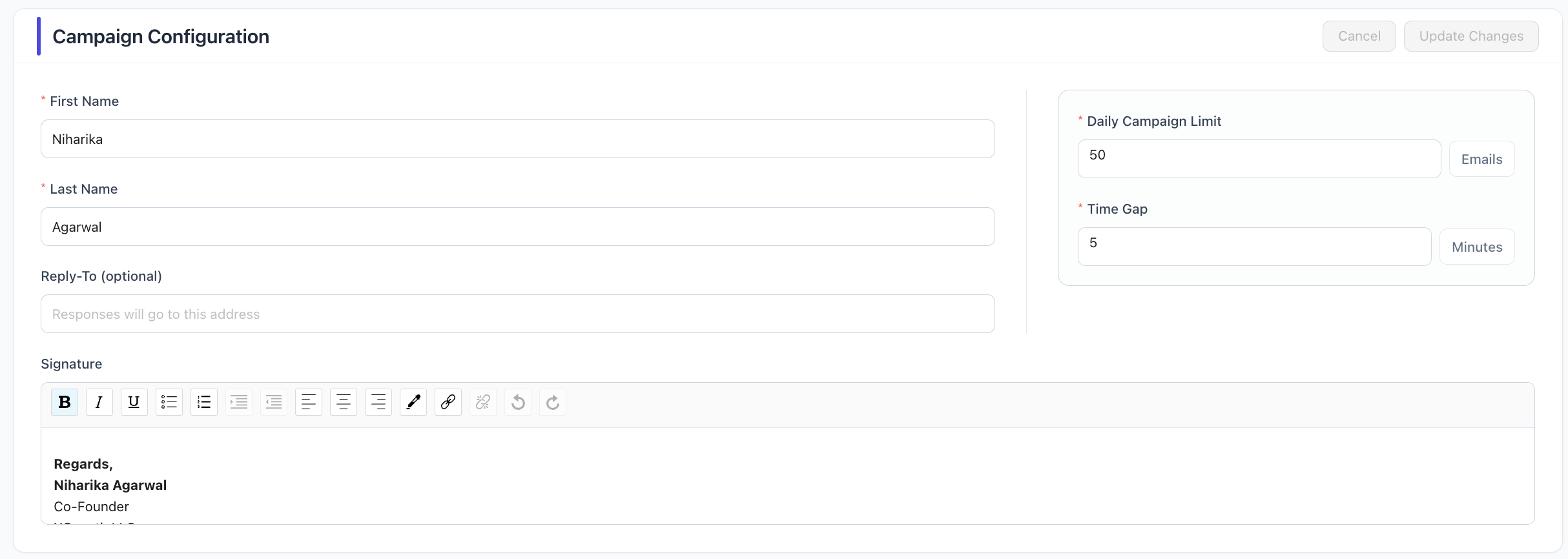
Go to Campaigns → open your campaign → proceed to the Settings step. You will see fields for Campaign Volume, Time Gap Between Emails, and Time Zone.
How the three settings interact
The time zone you select determines the active sending window — typically a standard 8-to-9-hour business day. The time gap controls how many emails can fit inside that window. The campaign volume is the ceiling; the window capacity is the actual limit.
For example, a 60-minute time gap inside a 9-hour window gives you at most 9 slots — meaning only 8 or 9 emails will go out regardless of how high you set the campaign volume.
Example — Campaign Settings
Setting
| Value
|
Campaign Volume
| 200 emails/day
|
Time Gap Between Emails
| 60 minutes
|
Time Zone Window
| 9 hours (e.g. 9 AM – 6 PM)
|
Emails that actually send
| 8 – 9 emails (not 200)
|
Result: The 60-minute gap only allows 9 sends within the 9-hour window. The campaign volume of 200 is never reached because the time gap is the real bottleneck.
To send more emails in the same window, reduce the time gap. A 10-minute gap in a 9-hour window gives you up to 54 sends.
Multiple sender accounts in one campaign
If you assign multiple sender accounts to a single campaign, xEmailCampaign distributes the campaign volume equally across all of them. With three sender accounts and a volume of 300, each account handles approximately 100 emails.
Email Account Sending Volume
What is it?
Every sender account has its own daily sending volume and time gap, configured separately from the campaign. This acts as an individual cap for that specific account — and it can override the campaign volume if it is set lower.
Where to find it
Go to Email Accounts → click on a sender account → open Email Settings. Inside, you will find Sending Volume and Time Gap Between Sends. (This same screen also holds your signature and warm-up settings.)
Why this limit matters
Even if your campaign is configured to send 100 emails a day, the sender account will only send up to its own volume limit. The campaign volume and the account volume are both enforced, whichever is lower wins.
Example — Account Limit Override
Setting
| Value
|
Campaign Volume
| 100 emails/day
|
Account Time Gap
| 4 minutes
|
Account Sending Volume
| 50 emails/day
|
Sender accounts in campaign
| 1
|
Emails that actually send
| ~15 emails
|
Result: The account is capped at 50 — but the 4-minute gap inside a 9-hour window only allows about 135 slots, which would seem fine. However, warm-up restrictions and other account-level limits often reduce this further to around 15 actual sends.
Tip: Always check your account-level sending volume and make sure it is high enough to support your campaign target — especially when the account is also running a warm-up schedule.
Putting It All Together
Full worked example
Here is a complete scenario showing how all the variables interac
Variable
| Value
|
Campaign Volume
| 300 emails/day
|
Campaign Time Gap
| 5 minutes
|
Time Zone Window
| 9 hours
|
Sender Accounts
| 3 accounts
|
Each Account Volume
| 80 emails/day
|
Each Account Time Gap
| 5 minutes
|
Step-by-step calculation:
Step 1 — Campaign window capacity: 9 hours × 60 ÷ 5-min gap = 108 possible slots.
Step 2 — Campaign volume cap: 300, which is higher than 108 — so the window is the bottleneck: ~108 sends possible.
Step 3 — Distribute across accounts: 108 ÷ 3 accounts = 36 sends per account.
Step 4 — Check account volume: Each account is capped at 80 — 36 is well below 80, so no account-level block.
Final result: ~108 emails go out (approximately 36 per sender account). Campaign volume of 300 is never reached because the time gap and sending window are the real constraints.
Quick Reference, What Controls Your Daily Send Count
Campaign Volume
| Campaign → Settings
| Max emails per day (ceiling)
|
Time Gap (campaign)
| Campaign → Settings
| Emails per hour in the window
|
Time Zone / Window
| Campaign → Settings
| Active sending hours per day
|
Account Sending Volume
| Email Accounts → Email Settings
| Max emails per account per day
|
Time Gap (account)
| Email Accounts → Email Settings
| Account-level send frequency
|
Tips to Avoid Under-Sending
Before launching a campaign, calculate your window capacity: (window hours × 60) ÷ time gap = max sends.
Make sure your Email Account Sending Volume is equal to or greater than your per-account share of the campaign volume.
If you add multiple sender accounts, the campaign volume is divided among them — increase campaign volume accordingly.
Warm-up schedules on accounts reduce available sending capacity. Factor this in when setting account-level limits.
If emails are going out far below your target, the first thing to check is the time gap — a large gap is usually the ca

