The Complete Guide to Using Variables in XemailCampaign Sequences
Overview
Variables are the backbone of personalized cold email outreach. They allow you to dynamically insert prospect-specific information into your email templates, making each message feel custom-written rather than mass-sent. This guide explains everything you need to know about using variables effectively in XemailCampaign sequences.
What Are Email Variables?
Variables are placeholders in your email templates that automatically populate with information from your lead list when emails are sent. For example, instead of writing "Hi there," you can write "Hi {{firstName}}" and each recipient will see their own first name.
The result: Emails that feel personal, relevant, and human—which dramatically improves open rates, reply rates, and overall campaign success.
The Golden Rule: Always Use Curly Braces
CRITICAL: Variables MUST be wrapped in double curly braces {{variableName}} to function properly.
Correct Format:
Hi {{firstName}},

I noticed that {{companyName}} recently expanded into {{industry}}.
Incorrect Format:
Hi firstName,

I noticed that companyName recently expanded into industry.
What happens if you don't use curly braces? The variable will be treated as plain text and sent exactly as written. Your recipient will literally see "Hi firstName" instead of "Hi Sarah."
How Variables Work with Your Lead List
Variables pull data directly from the columns in your uploaded lead list. The connection between your template and your data is simple but strict:
The Matching Process:
- You write:
{{firstName}}in your email template - Platform looks for: A column named "firstName" in your lead list
- Platform inserts: The value from that column for each specific recipient
Example Lead List:
| firstName | lastName | companyName | industry |
|---|---|---|---|
| Sarah | Johnson | TechFlow | SaaS |
| Michael | Chen | DataCore | Analytics |
Your Template:
Hi {{firstName}},

I see {{companyName}} is growing quickly in the {{industry}} space.
What Sarah Receives:
Hi Sarah,

I see TechFlow is growing quickly in the SaaS space.
What Michael Receives:
Hi Michael,

I see DataCore is growing quickly in the Analytics space.
Variable Validation: Why You Can't Save Incomplete Sequences
You CANNOT Save a Sequence If:
1. You've used a variable that doesn't exist in your lead list
- Template includes
{{jobTitle}}but your lead list has no "jobTitle" column - Error message: Red highlighting with notification that variable is missing from lead list
2. You haven't uploaded a lead list yet
- Cannot save sequences with variables until a lead list is connected
- Error message: "Lead list required to validate variables"
3. Variable names don't match exactly
- Template uses
{{first_name}}but lead list column is named{{firstName}} - Variable names are case-sensitive and must match precisely

Visual Indicators:
When there's a variable error:
- The problematic variable appears highlighted in red
- An error message explains what's missing
- The "Save Sequence" button remains disabled until issues are resolved
 Pro Tip: Always upload your lead list BEFORE creating your email sequences. This allows real-time validation as you write.
Essential Variables: The Personalization Foundation
While you can use unlimited custom variables, these three are considered essential for every campaign:
1. {{firstName}}
Why it matters: Makes your email feel like a personal message, not a blast Best practice: Use in the greeting and once more in the body (but don't overuse)
2. {{lastName}}
Why it matters: Useful for formal industries or when first name alone feels too casual Usage: Hi {{firstName}} {{lastName}} or for searching on LinkedIn
3. {{companyName}}
Why it matters: Shows you've done research and aren't sending generic spam Usage: Reference their company specifically to demonstrate relevance
Example using all three:
Hi {{firstName}},

I noticed {{companyName}} recently announced a Series B. Congrats to you and the team!
Given your role at {{companyName}}, I thought you might be interested in...

Best,
{{signature}}
Creating Multiple Sequences and Variants
XemailCampaign allows unlimited sequences and variants within each campaign, giving you flexibility to test different approaches.
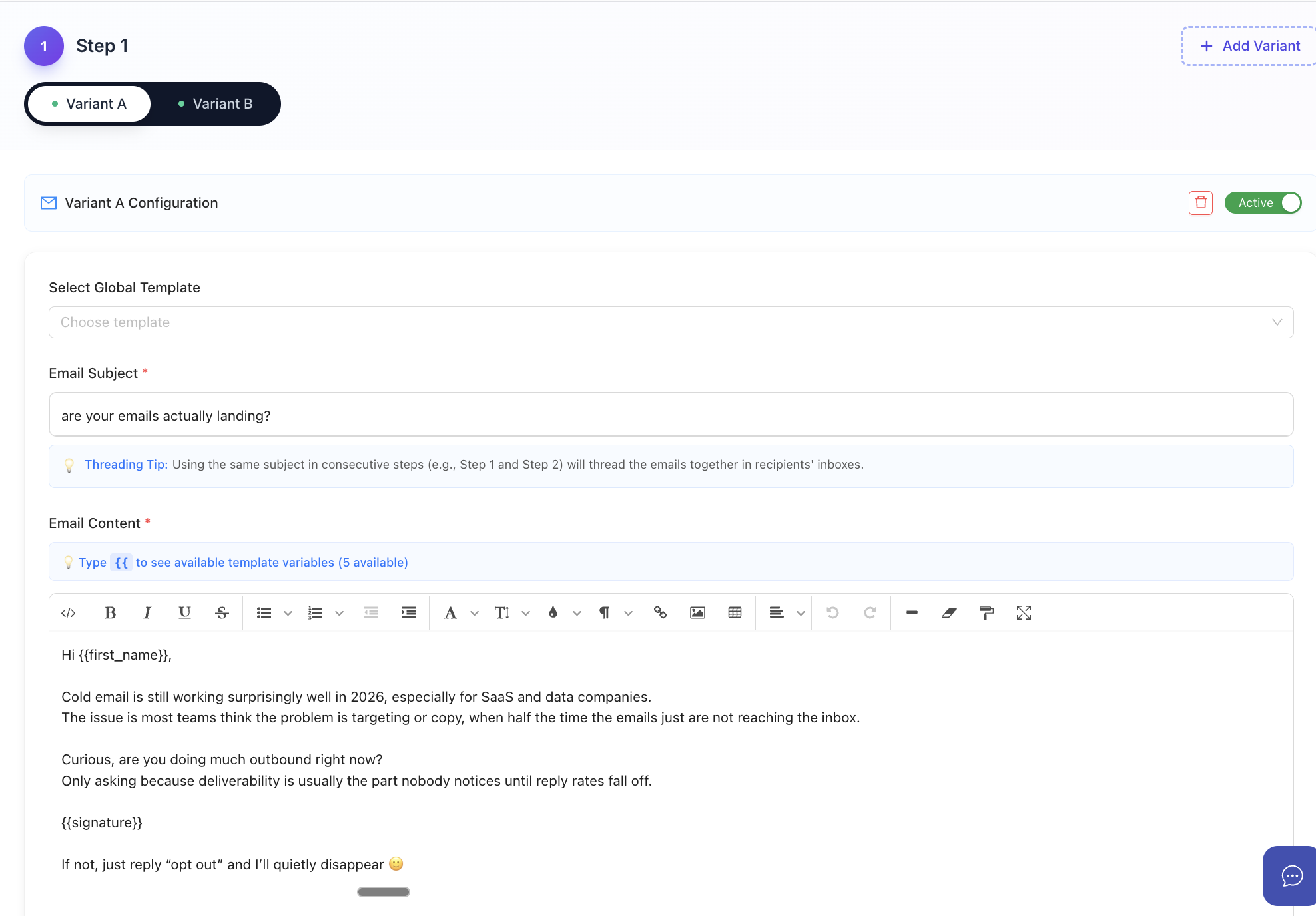 Variants
Preview and Test Before Sending
Before launching your campaign, always verify that variables are populating correctly.
How to Preview Your Emails:
- Navigate to your sequence editor
- Look for the "Preview" button (usually top-right of email editor)
- Select a sample contact from your lead list
- Review the rendered email with actual data populated
Send Test Emails to Yourself:
Why this is critical:
- See exactly what recipients will receive
- Check formatting and spacing around variables
- Verify that all variables populate correctly
- Catch any awkward phrasing or missing data
- Test email rendering across different clients
How to send a test:
- Click "Send Test Email" in the sequence editor
- Enter your email address
- Select which contact's data to use for the test
- Receive and review the test email in your inbox
What to check in test emails:
- ✓ All variables populated (no
{{firstName}}showing literally) - ✓ Natural spacing around variable text
- ✓ Capitalization looks correct
- ✓ No awkward grammar from variable placement
- ✓ Links and formatting work properly
Creating and Using Signature Variables
Your email signature is a variable too—and a powerful one for building credibility and professionalism.
Setting Up Your Signature:
- Navigate to Settings → Email Accounts
- Select the email account you're using for the campaign
- Click "Create Signature" or "Edit Signature"
- Build your signature template
Unlike lead variables that pull from your prospect list, signature variables pull from your email account settings and sender profile.
Troubleshooting Variable Issues
Problem: Variable Showing as Plain Text
Symptom: Email displays {{firstName}} literally instead of the actual name
Causes and Solutions:
Missing curly braces
- Check: Did you write
firstNameinstead of{{firstName}}? - Fix: Add double curly braces around the variable
Wrong bracket type
- Check: Did you use single braces
{firstName}or square brackets[firstName]? - Fix: Must use double curly braces:
{{firstName}}
Extra spaces
- Check:
{{ firstName }}(spaces inside braces) - Fix: Remove spaces:
{{firstName}}
Problem: Can't Save Sequence (Red Error)
Symptom: Save button disabled, variables highlighted in red
Causes and Solutions:
Variable not in lead list
- Check: Do you have a column in your lead list matching exactly?
- Fix: Either add the column to your lead list, or remove the variable from template
Spelling mismatch
- Check: Template uses
{{companyName}}but list has{{company_name}} - Fix: Make them match exactly (case-sensitive)
No lead list uploaded
- Check: Have you connected a lead list to this campaign?
- Fix: Upload your lead list first, then create sequences